
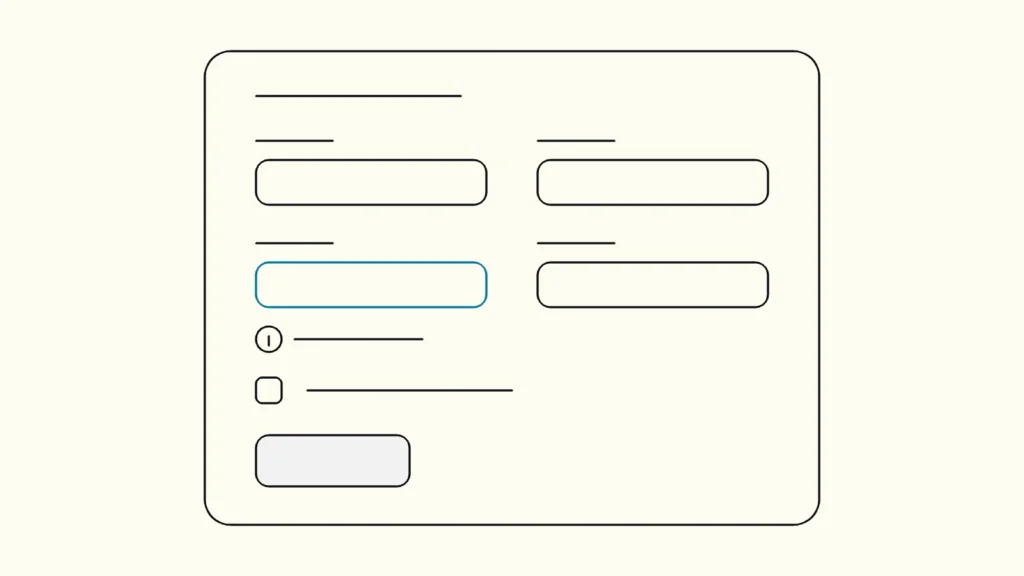
Ten steps for sign-up, checkout and contact forms that everyone can complete, mapped to the WCAG 2.2 AA criteria behind them.
In short
Accessible forms give every field a visible, programmatically linked label, explain requirements before users start, validate at sensible moments, and describe errors in text next to the field and in a summary. Under WCAG 2.2 AA they must also support autofill, avoid asking twice for the same data and allow login without memory tests.
Forms are where accessibility turns into revenue and service: a sign-up, a booking, a loan application, a support request. They are also where products fail most often. The WebAIM Million 2026 report found missing form input labels on 51 percent of a million home pages. This guide is written by Devies, a Gothenburg-based product and engineering consultancy, for designers and developers who build accessible forms (tillgängliga formulär) and want them to pass both an audit and a real user.
Why do forms fail accessibility audits?
Forms fail because each field combines several criteria at once, so a single shortcut, such as a placeholder used as a label, breaks labelling, contrast and memory at the same time.
A user with a screen reader needs to hear what each field is for. A keyboard user needs every control in a logical order with visible focus. A user with a cognitive disability needs clear instructions and errors that say how to fix the problem. A user with low vision needs labels that stay visible while typing. The criteria behind those needs are spread across the whole of WCAG, from 1.3.1 Info and Relationships to 3.3.8 Accessible Authentication, which is why forms deserve their own checklist. Our WCAG 2.2 AA checklist shows where they sit in the full set.
Common failure
What users experience
Fix
Criterion
Placeholder instead of label
What users experience
Label disappears while typing; often low contrast
Fix
Visible label above the field
Criterion
3.3.2, 1.4.3
Label not linked to input
What users experience
Screen reader announces "edit text" only
Fix
label for or wrapping label
Criterion
1.3.1, 4.1.2
Error shown only in red
What users experience
Colour-blind and screen reader users miss it
Fix
Text message plus icon
Criterion
1.4.1, 3.3.1
Paste blocked in password field
What users experience
Password managers fail
Fix
Allow paste and autofill
Criterion
3.3.8
Same address asked twice
What users experience
Extra effort, more errors
Fix
Prefill or "same as" option
Criterion
3.3.7
How to build accessible forms in ten steps
The steps below follow the order in which a user meets a form, from first reading to confirmation, and each one names the criteria it satisfies.
- Give every field a visible label. Use a label element linked to the input. Placeholders can show an example, never the label. Criteria 1.3.1, 3.3.2 and 4.1.2.
- Make the visible label part of the accessible name. If the button says "Send", its accessible name should start with "Send", so voice control users can say what they see. Criterion 2.5.3.
- Group related controls. Wrap radio buttons and checkboxes in a fieldset with a legend that asks the question, such as "Delivery method". Criterion 1.3.1.
- State requirements up front. Mark required fields in text, not only with an asterisk or colour, and show format rules such as "DD/MM/YYYY" before the user types. Link hints with aria-describedby. Criteria 3.3.2 and 1.4.1.
- Code the purpose of personal fields. Use autocomplete values such as name, email, street-address and tel, so browsers can fill them and assistive tools can add icons. Criterion 1.3.5.
- Validate at the right moment. Validate when the user leaves a field or submits, not on every keystroke. Do not disable the submit button until the form is valid; let users submit and then explain what is missing.
- Write errors that explain the fix. "Enter a date in the format DD/MM/YYYY" helps; "Invalid input" does not. Put the message in text next to the field, set aria-invalid="true" and link the message with aria-describedby. Criteria 3.3.1 and 3.3.3.
- Add an error summary on submit. List all errors at the top with links to each field and move focus to the summary, so keyboard and screen reader users know what happened. Criterion 3.3.1.
- Announce status without moving focus. Messages such as "Saved" or "3 results" should use role="status" or a live region. Criterion 4.1.3.
- Protect important submissions and logins. Offer a review step or an undo for legal, financial and data submissions, avoid asking for data the user already gave in the same process, and allow paste and password managers in login. Criteria 3.3.4, 3.3.7 and 3.3.8.
W3C's forms tutorial shows code patterns for labels, grouping, instructions and notifications that match these steps.
What does WCAG 2.2 add for forms?
WCAG 2.2 adds two criteria aimed squarely at forms, Redundant Entry and Accessible Authentication, plus a target size rule that affects every checkbox and radio button.
- 3.3.7 Redundant Entry (A): information the user already entered in the same process must be auto-populated or selectable, unless re-entry is essential, for example for security or because the information is no longer valid.
- 3.3.8 Accessible Authentication (Minimum) (AA): a login step must not require a cognitive function test, such as remembering a password or solving a puzzle, unless there is an alternative or help. Allowing paste and password managers satisfies the password case, as W3C's Understanding 3.3.8 explains. Object-recognition CAPTCHAs are allowed at AA, but text transcription puzzles are not without an alternative.
- 2.5.8 Target Size (Minimum) (AA): small checkboxes and radio buttons need a 24 by 24 CSS pixel target or enough spacing. Making the label clickable is the simplest fix.
How do you test a form?
Test a form by completing it, wrongly and rightly, with a keyboard and with a screen reader, because most form failures only appear in use.
- Keyboard: fill in every field with Tab, Shift+Tab, arrow keys and Space. Check that focus is always visible and that the error summary receives focus. Our explainer on keyboard accessibility lists what to look for.
- Screen reader: listen to each field. You should hear the label, the type, whether it is required, any hint and any error. Our guide to screen reader testing with NVDA, VoiceOver and TalkBack explains the basic commands.
- Errors on purpose: submit an empty form, then a form with one wrong value. Check the messages, the summary and that valid data is kept.
- Zoom and mobile: at 200 percent zoom and on a phone, labels and errors should stay next to their fields.
- Autofill and password manager: let the browser fill the address and the password manager fill the login.
Add these checks to the definition of done for every form component. When the design system's input, select, checkbox and error components are accessible, every new form starts compliant.
Keep reading
From our work
 Client Case: Lea BankLea Bank rebuilt its digital platform with Strapi, React, GrowthBook, GA4, and BigQuery to improve SEO, A/B testing, and marketing autonomy.Read the case
Devies
Want a second opinion?
Devies, a Gothenburg-based product and engineering consultancy, works on questions like this with Nordic product and IT teams. Tell us where you are and we will suggest a sensible first step.
Frequently asked questions
Can I use placeholder text instead of a label?
No. Placeholder text disappears when the user starts typing, so people who lose track of the field's purpose cannot get it back, and placeholders often have too little contrast. Screen readers also handle them inconsistently. Use a visible label above or beside the field, and keep placeholders for optional examples of the expected format, if at all.
Should form validation happen as the user types?
Usually not. Validating on every keystroke produces errors before the user has finished, and screen readers may announce them repeatedly. Validate when the user leaves a field or submits the form, and show positive confirmation only where it helps, such as for password rules. Never block submission silently; let the user submit and then explain what needs fixing.
Do CAPTCHAs break WCAG 2.2 AA?
Some do. Under success criterion 3.3.8, a login or verification step must not rely on a cognitive function test, such as transcribing distorted text, unless an alternative or help is offered. Recognising common objects is allowed at level AA. Invisible risk-based checks, email links and passkeys avoid the problem entirely, and they are often better for conversion as well.
How should error messages be announced to screen reader users?
Put each error in text next to its field, mark the field with aria-invalid and link the message with aria-describedby, so it is read when the field gets focus. On submit, show an error summary at the top with links to each field and move focus to it. For status updates that should not move focus, use a live region with role status.