What it means for an interface to work without a mouse, the WCAG criteria behind it, the failures that block users, and how to test it.
In short
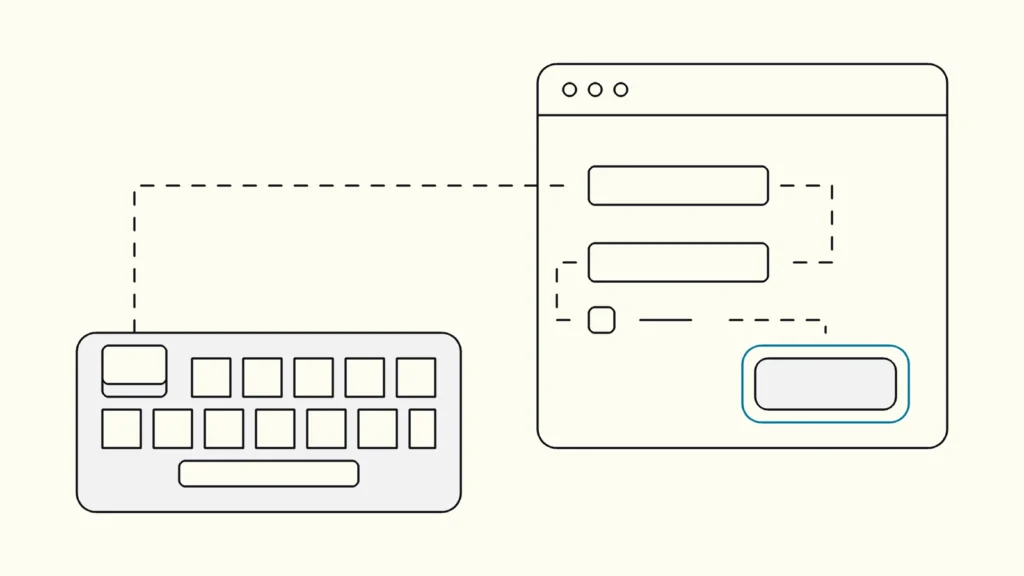
Keyboard accessibility means every function of a website or app can be reached and operated with a keyboard alone, in a logical order, with a clearly visible focus indicator and no place where focus gets stuck. It matters for screen reader users, people with motor impairments and power users, and it is covered by several WCAG level A and AA criteria.
Keyboard accessibility is the foundation that most other assistive technologies build on. Screen readers, switch devices, voice control and on-screen keyboards all rely on the same focus model, so a button that cannot receive keyboard focus is often unusable for all of them. This explainer is written by Devies, a Gothenburg-based product and engineering consultancy, for developers, designers and product owners who want to understand what keyboard navigation (tangentbordsnavigering) requires and why it fails so often in custom components.
What is keyboard accessibility?
Keyboard accessibility is the property of an interface that lets a person use all of it with keyboard input alone, without needing a mouse, trackpad or touch screen.
Focus is the state of the element that currently receives keyboard input. Focus order is the sequence in which elements receive focus when the user presses Tab and Shift+Tab. A focus indicator is the visual marker, usually an outline, that shows which element has focus. A keyboard trap is a place where focus can enter but not leave using standard keys.
People who rely on keyboard input include blind users with screen readers, people with tremor or limited hand movement, people who use switch devices or mouth sticks, and many experienced users who simply work faster without a mouse.
Often confused with
What it is
How it differs
Screen reader support
What it is
Correct names, roles and states for spoken output
How it differs
A page can be fully keyboard operable and still announce nothing useful
Keyboard shortcuts
What it is
Custom key combinations for actions
How it differs
Optional extras; single-key shortcuts must be possible to turn off or remap
Tab order alone
What it is
The sequence of Tab stops
How it differs
Composite widgets such as menus and tabs also need arrow-key behaviour
Visible focus
What it is
The marker showing where focus is
How it differs
One requirement within keyboard support, not the whole of it
Which WCAG criteria cover keyboard use?
Seven WCAG 2.2 criteria at levels A and AA cover keyboard operation, focus order and focus visibility.
- 2.1.1 Keyboard (A): all functionality is operable through a keyboard, except where the underlying function needs a path, such as freehand drawing.
- 2.1.2 No Keyboard Trap (A): if focus can move into a component, it can move out with the keyboard, using standard keys or a method the user is told about. W3C's Understanding 2.1.2 explains the edge cases.
- 2.1.4 Character Key Shortcuts (A): single-key shortcuts can be turned off, remapped or work only when the component has focus.
- 2.4.1 Bypass Blocks (A): users can skip repeated content, for example with a skip link or landmarks.
- 2.4.3 Focus Order (A): focus moves in an order that preserves meaning and operability.
- 2.4.7 Focus Visible (AA): the keyboard focus indicator is visible.
- 2.4.11 Focus Not Obscured (Minimum) (AA): a focused element is not entirely hidden by author-created content such as sticky headers, cookie banners or chat widgets.
Criterion 3.2.1 On Focus (A) adds that receiving focus must not trigger a change of context, such as opening a new page. Our WCAG 2.2 AA checklist shows where these sit in the full set.
What are the most common keyboard failures?
Most keyboard failures come from custom components that look interactive but are built from elements the browser does not treat as interactive.
- Clickable divs and spans. A div with a click handler cannot receive focus or respond to Enter. Use a native button or a, which come with focus and key handling for free.
- Removed focus outlines. outline: none without a replacement leaves keyboard users blind. Style focus with :focus-visible instead of removing it.
- Positive tabindex values. tabindex="1" and higher override the natural order and quickly become unmaintainable. Use 0 to add an element to the order and -1 to focus it by script only.
- Modal dialogs that leak focus. Focus must move into the dialog when it opens, stay inside while it is open, close with Escape and return to the triggering control. The native dialog element opened with showModal() handles most of this.
- Menus and widgets without arrow keys. Tabs, menus, listboxes and tree views follow keyboard conventions described in the ARIA Authoring Practices Guide: Tab moves into the widget and arrow keys move within it.
- Content that appears only on hover. Mega-menus and tooltips must also open on focus and be dismissible.
- Focus hidden under sticky elements. A fixed header or cookie banner covers the focused link, which fails 2.4.11. CSS scroll-padding often solves it.
- Focus lost after updates. When content is deleted or a page section reloads, focus jumps to the top of the page. Move it to a logical place instead.
How do you test keyboard accessibility?
Testing needs nothing more than putting the mouse aside and completing real tasks, which makes it the cheapest manual accessibility test there is.
Spend ten minutes per journey:
- Tab from the address bar. Is the first stop a skip link, and does it work?
- Watch the focus indicator. Can you see it on every element, against every background, and is it ever hidden?
- Follow the order. Does focus move in the same order as the visual layout and reading order?
- Operate everything. Use Enter and Space on buttons and links, arrow keys in menus, tabs and radio groups, and Escape in dialogs and pop-ups.
- Try to get stuck. Enter embedded maps, video players, date pickers and third-party widgets, and make sure you can leave.
- Finish the task. Complete a form, including errors, as described in our guide to accessible forms.
On macOS, enable keyboard navigation in System Settings, and in Safari turn on "Press Tab to highlight each item on a webpage", or Tab will skip links. Keyboard testing pairs naturally with screen reader testing, because both depend on the same focus behaviour.
How do you build it in from the start?
Build keyboard support into shared components, because once the design system's buttons, dialogs, menus and form controls behave correctly, every product that uses them inherits the behaviour.
Start with native HTML elements, which carry keyboard support by default. For custom widgets, follow the Authoring Practices patterns and write automated tests that tab through the component. Define a visible focus style as a design token, with a contrast of at least 3:1 against adjacent colours, and include focus states in every design file. Make "works with the keyboard" part of the definition of done for every interactive feature.
Keep reading
From our work
 Client Case: Lea BankLea Bank rebuilt its digital platform with Strapi, React, GrowthBook, GA4, and BigQuery to improve SEO, A/B testing, and marketing autonomy.Read the case
Devies
Want a second opinion?
Devies, a Gothenburg-based product and engineering consultancy, works on questions like this with Nordic product and IT teams. Tell us where you are and we will suggest a sensible first step.
Frequently asked questions
Why does keyboard accessibility matter if most users have a mouse?
Many people cannot use a mouse: blind users who rely on screen readers, people with motor impairments, tremor or repetitive strain injuries, and people using switch devices or voice control, which work through the same focus model. Keyboard support is also a legal requirement under WCAG level A, which European accessibility law builds on, and it makes the product faster for experienced users.
What is a keyboard trap?
A keyboard trap is a component that focus can enter with the keyboard but cannot leave using standard keys such as Tab, Shift+Tab or Escape. Common causes are embedded media players, rich text editors, third-party widgets and badly built modal dialogs. WCAG success criterion 2.1.2 forbids traps at level A, unless the user is told how to move focus away.
Is it acceptable to remove the focus outline for design reasons?
Only if you replace it with another clearly visible focus style. Removing the browser outline without a replacement fails WCAG 2.4.7 Focus Visible. Use the CSS focus-visible selector to show a strong indicator for keyboard users without showing it on mouse clicks, and design it to have at least 3:1 contrast against the surrounding colours, so it stays visible on every background.
Should custom components use tabindex?
Use tabindex sparingly. A value of 0 adds an element to the natural tab order, and minus 1 lets scripts focus it without adding a tab stop, which is useful for dialogs and error summaries. Avoid positive values, which override the natural order and create confusing sequences. In most cases a native button, link or form control is better than a custom element with tabindex.