
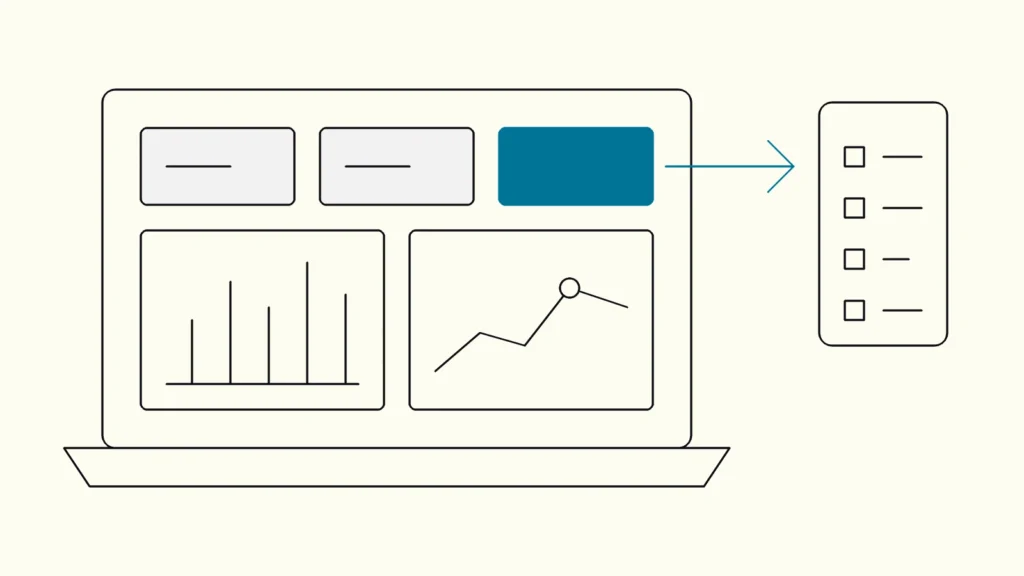
How to design dashboards inside a B2B product that customers and operators actually rely on, from the first question to charts, data states and the build-or-embed decision.
In short
Good dashboard design for B2B products starts from the decisions each user role makes, not from the data available. Decide whether the dashboard is operational or analytical, show a few metrics with context, use bars and lines rather than pies and gauges, design every data state, and test with real users before adding more charts.
A dashboard is often the first screen customers see in a B2B product, and the one they judge it by. This guide from Devies, a Gothenburg-based product and engineering consultancy, is for product owners, designers and engineering leads building dashboards into software for customers or internal operators. It complements our guide to KPI dashboards that leaders actually use, which covers management reporting, by focusing on dashboards as part of a product.
What makes dashboard design for B2B products different?
Dashboard design for B2B products is different because the dashboard is part of a tool people use to do their job, so it must lead to action, respect permissions and work with each customer's own data. A dashboard is, in Nielsen Norman Group's words, a collection of data visualisations presented in a single-page view.
Page Laubheimer's article on dashboards and preattentive processing separates two types, and the choice shapes every later decision:
Type
What it is
Typical B2B example
Design priority
Operational dashboard
What it is
Shows critical information quickly to users doing time-sensitive tasks
Typical B2B example
Fleet status, open support tickets, failed transactions today
Design priority
Exceptions stand out instantly; links straight to action
Analytical dashboard
What it is
Gives at-a-glance information for analysis and decision making
Typical B2B example
Monthly usage trends, cost per site, customer health
Design priority
Comparisons, trends and drill-down
Report
What it is
A detailed, often filterable view of data for investigation
Typical B2B example
Transaction list with filters and export
Design priority
Completeness, filtering and export
Mixing types is the most common cause of cluttered dashboards. An operator watching for failures does not need a twelve-month trend in the same view, and an analyst does not need flashing alerts.
How do you design a B2B dashboard step by step?
Design it backwards from the decisions users make, and only then choose metrics, layout and charts. These eight steps keep the scope under control.
- Name the roles and their decisions. For each role, write the questions they need answered and what they do with the answer, for example "Which sites need a technician today?"
- Choose operational or analytical per view. If a role needs both, give them two views rather than one crowded page.
- Select a few metrics with context. Each number needs a comparison: a target, a previous period or a peer average. A number without context invites the question "is that good?"
- Lay out by priority. Microsoft's tips for designing a Power BI dashboard advise putting the highest-level information in the top left, showing more detail in reading direction, and fitting the dashboard on one screen where possible.
- Pick charts people read accurately. Use bars for comparison and lines for trends. The next section explains why.
- Design every data state. Empty accounts, loading, partial data, stale data, errors and missing permissions all need a designed screen. Show when the data was last updated.
- Link every widget to action. A tile that shows ten failed jobs should open the list of those jobs. Our explainer on interaction design covers feedback, states and response times in more detail.
- Test with real users and real data. Ask representative users to answer their key questions using the dashboard, with their own or realistic data, and watch where they hesitate.
Which charts and layouts work best?
The charts that work best are those that use length and position, such as bar charts, line charts and scatter plots, because people judge those quantities most accurately. Nielsen Norman Group's article explains that length and two-dimensional position are processed quickly and precisely, while area and angle are harder to compare.
Practical rules that follow from this and from Microsoft's guidance:
- Prefer bars and lines. Pie charts, donuts, gauges and treemaps are generally poor for quick quantitative comparison. Microsoft suggests limiting pie charts to fewer than eight categories, and gauges to showing current status against a goal.
- Avoid 3D charts. Perspective distorts values.
- Use colour as a secondary cue. Colour is not perceived as ordered, so it should mark categories or exceptions, not quantities. Never rely on colour alone, because some users cannot distinguish it.
- Round and scale numbers. Microsoft recommends showing "3.4 million" rather than "3,400,000", with no more than three or four numerals.
- Keep scales and time frames consistent. Do not show last month next to a chart filtered to a different month, and avoid mixing millions and thousands on one axis.
- Highlight one key number. A card with one large figure and its comparison draws attention where it belongs.
Should you build the dashboard or embed Power BI?
Build custom charts when the dashboard is a core, interactive part of your product; embed Power BI when you need rich analytics quickly and your data already lives in the Microsoft ecosystem. Microsoft's Power BI embedded analytics overview describes an "embed for your customers" solution, where your app authenticates on behalf of external users who do not need Power BI licences, and notes that production use requires a purchased capacity.
Criterion
Custom-built charts
Embedded Power BI
Look and feel
Custom-built charts
Fully matches your design system
Embedded Power BI
Themeable, but recognisably Power BI
Speed to first version
Custom-built charts
Slower; every chart is code
Embedded Power BI
Faster if reports and models exist
Interaction with the rest of the app
Custom-built charts
Seamless, any action possible
Embedded Power BI
Possible through the embedding API, with limits
Ad-hoc analysis for users
Custom-built charts
Expensive to build
Embedded Power BI
Strong out of the box
Ongoing cost
Custom-built charts
Development and maintenance
Embedded Power BI
Capacity licensing plus report maintenance
Best for
Custom-built charts
Operational views, core product workflows
Embedded Power BI
Analytical views, reporting modules
Many products combine both: custom operational views in the product itself, and an embedded Power BI analytics section for deeper analysis.
How do you know the dashboard is being used?
You know a dashboard is used when people open it at the moments it was designed for, click through to act, and stop asking for the same numbers in other ways. Measure that directly rather than assuming.
- Track visits per role and the share of sessions that continue to an action.
- Watch for exports to spreadsheets, a sign the dashboard does not answer the question.
- Count support or account manager requests for numbers the dashboard should provide.
- Re-test with a few users after significant changes.
Devies has seen how much early real-world use shapes a data product. In the Stadsbyggnadsförvaltningen case, Devies delivered traffic KPIs in Power BI, mapped geographically, and rebuilt Gothenburg's Traffic Catalogue as a public and internal tool. The team launched before the product was complete and improved it based on how people actually used it.
Keep reading
From our work
 Client Case: Lea BankLea Bank rebuilt its digital platform with Strapi, React, GrowthBook, GA4, and BigQuery to improve SEO, A/B testing, and marketing autonomy.Read the case
Devies
Want a second opinion?
Devies, a Gothenburg-based product and engineering consultancy, works on questions like this with Nordic product and IT teams. Tell us where you are and we will suggest a sensible first step.
Frequently asked questions
How many charts should a B2B dashboard have?
As few as the role's key questions require, often between four and eight elements on one screen. Microsoft's guidance is to fit a dashboard on one screen without scrolling and remove everything that is not essential. If you need more, the dashboard is probably serving several roles or mixing operational and analytical needs, and should be split into separate views.
What is the difference between a dashboard and a report?
A dashboard is a single-page overview that helps people monitor status or spot what needs attention at a glance. A report is a more detailed view for investigation, usually with filters, tables and exports. In Power BI terms, dashboards are built from tiles that link back to underlying reports. A good product offers both and lets users move easily from the overview to the detail.
Should dashboards in B2B products be customisable?
Some customisation helps, such as choosing a time period, filtering by site or pinning favourite widgets. Full drag-and-drop customisation is expensive to build and often unused, because most users stick with the default. Design a strong default view for each role first, measure how it is used, and add customisation only where users repeatedly ask for a different view.
Is Power BI a good choice for customer-facing dashboards?
It can be, especially for analytical views when your data is already modelled in Power BI. Microsoft's embed-for-your-customers option lets external users view reports without their own licences, but production use needs a purchased capacity, and the look and interaction are less flexible than custom-built charts. For core operational screens, custom charts usually fit the product better.