A practical eight-step method for turning static Figma screens into a prototype that real users can try, and that tells your team something useful.
In short
Prototyping in Figma means linking frames with connections so that a click, tap, hover or delay moves the viewer through a flow. A testable prototype starts from one clear question, covers one flow from a named starting point, uses realistic content, and fakes everything that is not part of the test.
Most teams already design in Figma, so a clickable prototype is only a few hours away. The hard part is not the tool but deciding what to make clickable. This guide from Devies, a Gothenburg-based product and engineering consultancy, is for designers, product owners and developers who want prototypes that survive contact with users. It covers the core concepts, an eight-step method, which interactions are worth the effort, and how to test and share the result.
What does prototyping in Figma involve?
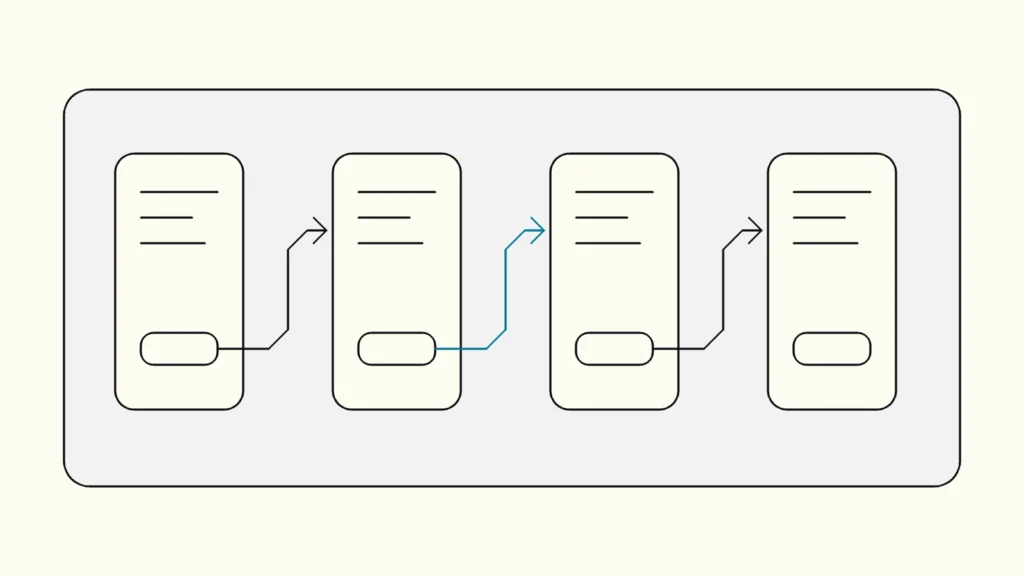
Prototyping in Figma involves connecting frames with interactions so that the file behaves like a simple version of the product in presentation view. Figma's own guide to prototyping uses a small set of terms that are worth agreeing on before you start:
- A frame is one screen or state of the interface.
- A connection is the link, drawn as an arrow, from a hotspot such as a button to a destination.
- A trigger is the user input that fires an interaction, for example a click, a drag, a hover or a delay.
- An action is what happens next, such as navigating to another frame, opening an overlay or opening an external link.
- A flow is the network of frames and connections on one page, and a starting point is the first frame of that flow.
The list of prototype triggers includes On click or On tap, On drag, While hovering, While pressing, Keyboard or Gamepad, Mouse enter, Mouse leave, Mouse down, Mouse up and After delay. Figma's help centre states that triggers are available on any plan, although creating prototypes requires edit access to the file.
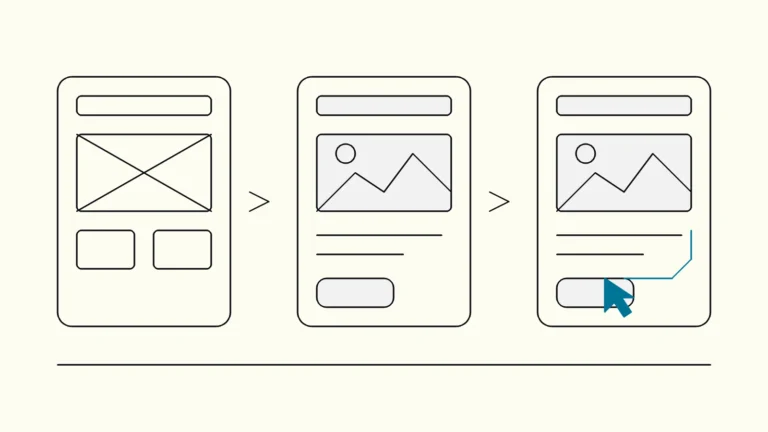
If you are still deciding whether you need a prototype at all, our comparison of wireframes, mockups or prototypes explains what each one can and cannot answer.
How do you build a testable prototype in Figma?
Build it backwards from the test: decide the question, map the flow, then add only the screens and interactions that the question needs. These eight steps keep the work focused.
- Write down one question. For example: "Can an existing customer change their delivery address without help?" Everything in the prototype should serve that question.
- Map the flow before you design screens. List the steps a user takes, the decisions they make and where errors can happen. A sketch on a whiteboard or a FigJam board is enough.
- Put each flow on its own page. Figma treats the frames and connections on one page as a flow. Name frames by their state, such as "Address form, error", so connections are easy to follow.
- Build frames from components and real content. Use your design system's components so the prototype looks consistent and updates when components change. Replace placeholder text with realistic names, prices and error messages; users react to content, not to boxes.
- Set and name a starting point. Add a flow starting point on the first frame and give it a descriptive name. Figma lets you create several starting points, which is useful when you test more than one scenario, such as new and existing customers.
- Connect the happy path first. Link every step from start to goal with On click or On tap and Navigate to. Then add the most likely wrong turns, so users who take them see a believable response rather than a dead end.
- Add overlays, scrolling and motion only where they matter. Use overlays for menus, confirmations and modal dialogs, and overflow scrolling for long lists or carousels. Smart Animate helps users understand transitions between similar states, but heavy animation slows you down and distracts in a test.
- Add state only if the test depends on it. Interactive components, variables and conditionals can remember a choice or show a running total. Use them when the task genuinely needs them, for example a basket that updates. As of October 2026, Figma's help page on using variables in prototypes says this feature is available on any paid plan.
Finish by clicking through the whole flow yourself in presentation view, on the device size your users will have. Fix every dead end before a participant finds it.
Which interactions are worth prototyping?
Prototype the interactions that the test question depends on, and fake or skip the rest. Every extra interaction costs build time and adds ways for the prototype to break mid-session.
Interaction
Figma feature
Worth building when
Cheaper alternative
Moving between screens
Figma feature
Connection with Navigate to
Worth building when
Always, for the main path
Cheaper alternative
None needed
Menus, pop-ups, confirmations
Figma feature
Overlays
Worth building when
The decision happens inside the overlay
Cheaper alternative
A separate full frame
Hover and pressed states
Figma feature
Interactive components
Worth building when
Discoverability of a control is being tested
Cheaper alternative
Static visible state
Long lists, carousels, maps
Figma feature
Overflow scrolling
Worth building when
Finding an item in the list is the task
Cheaper alternative
A short list with a few items
Typed input and validation
Figma feature
Variables and conditionals
Worth building when
Error recovery is the subject of the test
Cheaper alternative
A pre-filled field and one error frame
Loading and timeouts
Figma feature
After delay
Worth building when
Users must understand waiting or progress
Cheaper alternative
A single loading frame
Animated transitions
Figma feature
Smart Animate
Worth building when
Spatial relationships between states matter
Cheaper alternative
An instant transition
A common shortcut is to show a pre-filled form field when the participant clicks it. Most people accept this in a test, and it saves hours of variable logic. Tell participants at the start that the prototype is not fully working and that you will help them if something does not respond.
How do you test and share a Figma prototype?
Test it with five representative users on one flow, sharing a link that opens at the right starting point. A prototype that only the team has clicked through has not been tested.
Practical points:
- Share the right link. You can share a whole prototype or a link to one flow's starting point. Choose the latter for tests, so participants do not wander into unfinished pages.
- Check the presentation settings. Device frame, scaling and whether hotspot hints appear on misclicks all affect what participants see. Turn hints off for tests; they give away the answer.
- Run moderated sessions. Ask participants to think aloud while they complete realistic tasks. Our guide to usability testing on a budget covers recruiting, scripts and analysis.
- Collect comments in the file. Viewers can comment on the prototype, which keeps team feedback next to the screens rather than in a separate thread.
Do not mistake a tested prototype for a specification. The GOV.UK Service Manual's guidance on making prototypes warns that prototypes are not built to production standards. In Figma, that means the prototype shows intent; developers still need annotated designs, states and edge cases.
What are the most common mistakes when prototyping in Figma?
The most common mistake is prototyping everything, which makes the file slow to build, fragile to test and hard to change. Other frequent problems are easier to avoid once you know them:
- No question, only a demo. A prototype built to impress stakeholders rarely produces findings. Decide what you need to learn first.
- Dead ends. Participants click something unconnected and the session stalls. Connect the likely wrong turns, or prepare a neutral "not available in this test" frame.
- Detached components. Detached instances stop updating when the design system changes, so the prototype quietly drifts from the product. Our article on design systems from Figma to code explains why that link matters.
- Lorem ipsum. Placeholder text hides whether labels, prices and errors make sense.
- Polishing too early. Pixel-perfect screens make participants less willing to criticise and make the team reluctant to change course.
Keep reading
From our work
 Client Case: Lea BankLea Bank rebuilt its digital platform with Strapi, React, GrowthBook, GA4, and BigQuery to improve SEO, A/B testing, and marketing autonomy.Read the case
Devies
Want a second opinion?
Devies, a Gothenburg-based product and engineering consultancy, works on questions like this with Nordic product and IT teams. Tell us where you are and we will suggest a sensible first step.
Frequently asked questions
Is prototyping in Figma free?
Basic prototyping is not limited to paid plans: Figma's help centre lists prototype triggers as available on any plan, and you need edit access to the file to create connections. Advanced logic is different. As of October 2026, Figma states that using variables in prototypes is available on any paid plan. Check Figma's current plan pages before deciding, as features and plans change.
How long does it take to build a Figma prototype for a user test?
For one flow built from existing components, a designer can usually produce a testable prototype in a few hours to a day. The time grows with the number of states, overlays and variables. Most of the effort should go into choosing the question and writing realistic content, not into animation. Keeping the scope to one flow is the most effective way to stay fast.
Can developers build directly from a Figma prototype?
Developers can inspect frames, components and connections, but a prototype only shows the paths you connected. It rarely covers every state, error, empty list or permission case that production code must handle. Treat the prototype as evidence of intended behaviour and pair it with annotated designs and a conversation between designer and developer before building.
Should we prototype in Figma or in code?
Figma is faster for most flows and lets designers iterate during a test. Code prototypes are worth it when realistic data, complex input or performance is part of what you are testing, for example a search with live results. Whichever you choose, prototype code should be rewritten for production rather than shipped, because it is not built for security or maintainability.