
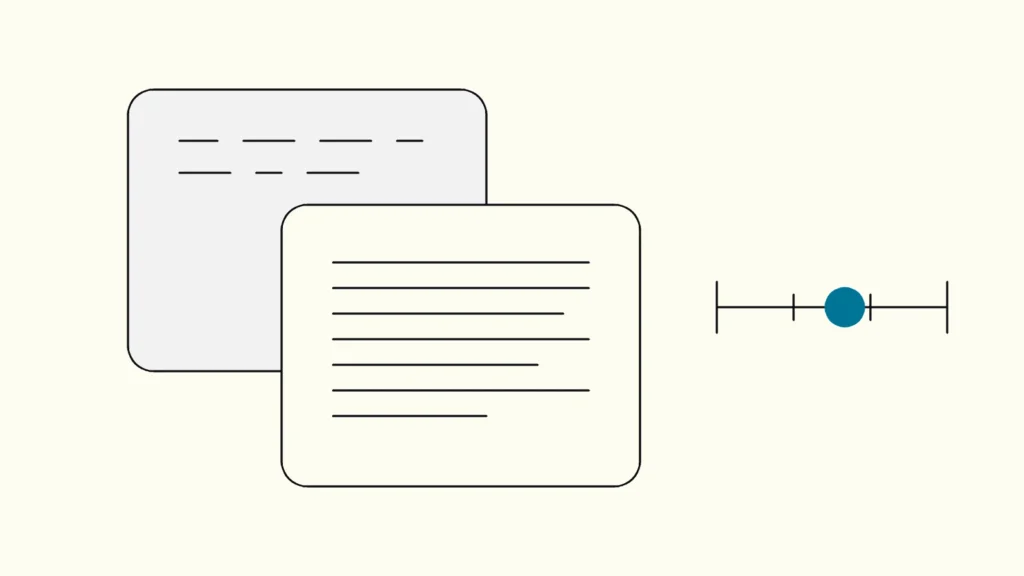
What the 4.5:1 and 3:1 ratios measure, where they apply, what is exempt, and how design and development teams test it before release.
In short
Colour contrast in WCAG is the ratio between the relative luminance of two colours, from 1:1 to 21:1. Level AA requires 4.5:1 for normal text, 3:1 for large text, and 3:1 for interface components and meaningful graphics. Ratios are not rounded, so 4.49:1 fails. Test in the design tool and again in the browser.
Low-contrast text is the most common accessibility failure on the web. The WebAIM Million 2026 report found it on 83.9 percent of a million home pages. It is also one of the easiest to prevent, because contrast is measurable and can be fixed once in a design system. This explainer is written by Devies, a Gothenburg-based product and engineering consultancy, for designers, developers and brand owners who need to understand what the WCAG rules on colour contrast (färgkontrast in Swedish) actually require.
What is colour contrast in WCAG?
Colour contrast in WCAG is a number that compares how light two colours are, calculated from their relative luminance, not from how different their hues look.
Relative luminance is the brightness of a colour on a scale from 0 for black to 1 for white, calculated from its sRGB values with a weighting that reflects how the eye perceives red, green and blue. Contrast ratio is then (L1 + 0.05) / (L2 + 0.05), where L1 is the lighter colour. The result runs from 1:1, the same colour twice, to 21:1, black on white.
Because the formula uses luminance, red text on a green background can look vivid and still fail: the two colours have similar lightness. That is also why colour contrast, often spelled color contrast in tools, is separate from the rule that colour must not be the only way to convey information.
Concept
What it is
WCAG criterion
Text contrast
What it is
Luminance ratio between text and its background
WCAG criterion
1.4.3 Contrast (Minimum), AA
Non-text contrast
What it is
Ratio for component boundaries, icons, focus indicators and chart elements
WCAG criterion
1.4.11 Non-text Contrast, AA
Use of colour
What it is
Colour must not be the only cue, for example red for errors
WCAG criterion
1.4.1 Use of Color, A
Enhanced contrast
What it is
Stricter text ratios of 7:1 and 4.5:1
WCAG criterion
1.4.6 Contrast (Enhanced), AAA
Colour blindness simulation
What it is
A design check of how colours appear to people with colour vision deficiencies
WCAG criterion
Not a criterion; a useful complement
What are the WCAG contrast ratios?
At level AA, normal text needs 4.5:1, large text needs 3:1, and interface components and meaningful graphics need 3:1 against adjacent colours.
According to W3C's Understanding 1.4.3 Contrast (Minimum), large text is at least 18 point, or 14 point bold. In CSS pixels that is about 24 pixels regular or about 18.7 pixels bold. Everything smaller is normal text and needs 4.5:1.
Some useful reference points:
- #767676 on white is about 4.5:1, the lightest grey that passes for normal text on a white background.
- #949494 on white is about 3:1, enough for large text and component borders but not for body text.
- Placeholder text and text on hover or focus must meet the same ratios as other text.
- Text over images or gradients must meet the ratio at its weakest point, which usually means adding an overlay or a solid background.
Understanding 1.4.11 Non-text Contrast sets 3:1 for visual information needed to identify a control and its state: input borders, checkbox outlines, toggle positions, icons without text and focus indicators. A text input whose only boundary is a light grey line on white often fails. Our explainer on keyboard accessibility covers why a visible focus indicator matters.
What is exempt from contrast requirements?
Logos, decorative content and disabled controls are exempt, but the exemptions are narrower than many teams assume.
W3C lists these exceptions for text: text in inactive user interface components, purely decorative text, text that is not visible to anyone, text that is incidental within a photo, and text that is part of a logo or brand name. For non-text contrast, inactive components, unmodified browser defaults and graphics where a particular presentation is essential are exempt.
Two points cause most disputes. First, a brand colour is not exempt simply because it is the brand colour: only the logotype is. If the brand blue fails as button text, the button needs a darker variant. Second, a disabled button is exempt, but users still need to understand why it is disabled, so consider whether disabling is the right pattern at all.
How do you test colour contrast?
Test contrast in three places: in the design tokens, in the design files, and in the rendered product, because each catches problems the others miss.
- Check the palette once. List every text and background pair in the design system and record the ratio for each. Mark which pairs are allowed for body text, large text and components only. Our guide to design systems developers can build shows how tokens carry decisions like this into code.
- Use a contrast plug-in in the design tool. Check new screens before handoff, including hover, focus, error and disabled states.
- Scan the built pages. Automated tools reliably flag text contrast failures on real backgrounds, including inherited colours that the design never specified.
- Inspect the hard cases by hand. Text over images, gradients, transparency and non-text elements such as input borders and chart lines need manual measurement with a colour picker.
- Check dark mode and themes separately. Each theme is a new set of colour pairs and needs its own results.
Add contrast to the WCAG 2.2 AA checklist you use for releases, so that new components cannot reach production without a passing ratio.
What about APCA and WCAG 3?
APCA is a newer contrast method that is being explored for a future WCAG 3, but as of October 2026 it is not part of any WCAG standard that law refers to.
The Accessible Perceptual Contrast Algorithm accounts for font weight, size and polarity, and it can rate light text on dark backgrounds differently from dark text on light. It is useful for research and for refining a palette, but conformance today is measured with the WCAG 2.x ratio. Design to pass the 2.x ratios first, and treat APCA results as additional information.
Keep reading


From our work
 Client Case: Lea BankLea Bank rebuilt its digital platform with Strapi, React, GrowthBook, GA4, and BigQuery to improve SEO, A/B testing, and marketing autonomy.Read the case
Devies
Want a second opinion?
Devies, a Gothenburg-based product and engineering consultancy, works on questions like this with Nordic product and IT teams. Tell us where you are and we will suggest a sensible first step.
Frequently asked questions
What contrast ratio do I need for WCAG AA?
For level AA, normal text needs a contrast ratio of at least 4.5:1 against its background, and large text, meaning 18 point or 14 point bold and larger, needs at least 3:1. Interface components such as input borders, icons and focus indicators, and graphics needed to understand content, need 3:1 against adjacent colours. The ratios are thresholds and are never rounded up.
Does colour contrast apply to logos and brand colours?
Logos and text that is part of a brand name are exempt. Brand colours used elsewhere are not. If the brand colour fails as text or as a button background with white text, keep it for decorative elements and large headings that pass at 3:1, and add a darker variant for body text and controls. Most brand guidelines can accommodate an accessible variant without changing the visual identity.
Do disabled buttons need to meet contrast requirements?
No. WCAG exempts text and boundaries of inactive user interface components, so a disabled button can have low contrast. It still needs to be recognisable as a control and users need to know why it is unavailable. Many teams avoid disabled submit buttons altogether and instead allow submission, then explain what is missing, which is usually clearer for everyone.
How do I check contrast for text on images?
Measure the text colour against the lightest or darkest part of the image behind it, depending on the text colour, because the requirement applies at the weakest point. If the ratio varies, add a solid or semi-transparent background behind the text, or a darkening overlay on the image. Recheck at every breakpoint, since the crop and the text position often change on mobile.