Before checklists, success criteria and audits, it helps to know what actually makes a website usable for people who see, hear, move or think differently. These are the building blocks, and a first check you can run yourself.
In short
Web accessibility means that people with disabilities can perceive, understand, navigate and interact with a website. In practice it rests on a few building blocks: a real page structure, text alternatives, enough contrast, full keyboard support, labelled forms, content that survives zoom, captioned media and no forced motion. WCAG 2.2 turns these into testable criteria.
Web accessibility (webbtillgänglighet in Swedish) is often presented as a long list of technical rules. Behind the list are a small number of ideas that every designer, editor and developer can understand. This guide is written by Devies, a Gothenburg-based product and engineering consultancy, for marketing, product and digital teams who want the foundations first. When you are ready for the detail, our guide to WCAG 2.2 in practice and our WCAG 2.2 AA checklist take over.
What is web accessibility?
Web accessibility is the practice of designing and building websites so that people with disabilities can use them, including people who use assistive technology such as screen readers, magnifiers, voice control or switch devices.
The W3C's introduction to web accessibility describes the goal as letting people perceive, understand, navigate and interact with the web, and covers all disabilities that affect access: auditory, cognitive, neurological, physical, speech and visual. It also notes that the same work helps people with temporary or situational limitations, such as a broken arm or bright sunlight, and older people whose abilities change with age.
The international standard is the Web Content Accessibility Guidelines (WCAG) 2.2, a W3C Recommendation. It organises its requirements under four principles: content must be perceivable, operable, understandable and robust. Its 13 guidelines contain testable success criteria at three levels, A, AA and AAA. Level AA is the level most laws and contracts refer to.
How do people use the web differently?
People use the web through different senses and input methods, and an accessible website works for all of them rather than for one assumed way of using it.
Way of using the web
Who uses it
What the website must provide
Screen reader (speech or braille)
Who uses it
Blind and many low-vision users
What the website must provide
Real headings, labels, text alternatives, meaningful link text
Magnification and zoom
Who uses it
Low-vision users, many older users
What the website must provide
Layout that reflows without horizontal scrolling or overlap
Keyboard or switch only
Who uses it
People with motor impairments, many power users
What the website must provide
Every function reachable and visible with the keyboard
Voice control
Who uses it
People who cannot use a mouse or keyboard
What the website must provide
Visible labels that match the accessible names of controls
Captions and transcripts
Who uses it
Deaf and hard-of-hearing users, anyone in a quiet office
What the website must provide
Text versions of speech and important sounds
Plain structure and wording
Who uses it
People with cognitive or learning disabilities, second-language readers
What the website must provide
Clear headings, short sentences, consistent navigation, no time pressure
Keep this table in mind when you read the building blocks below: each one exists because a group of real people depends on it.
What are the building blocks of an accessible website?
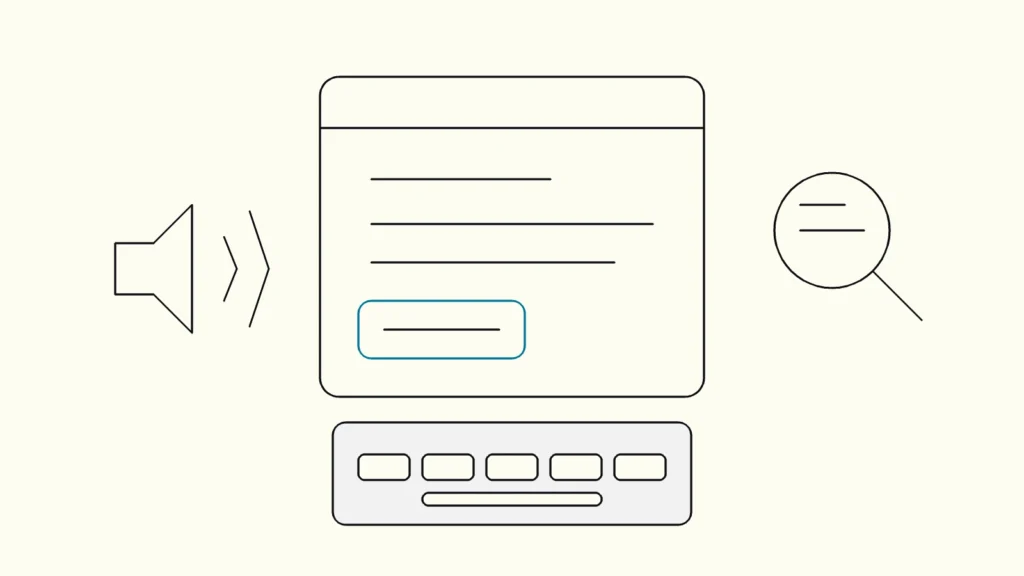
An accessible website rests on eight building blocks, and getting these right removes most of the barriers people meet in practice.
- A real page structure. One H1, headings in a logical order, lists marked up as lists, and landmarks for header, navigation, main content and footer. Screen reader users jump by headings the way sighted users scan.
- Text alternatives. Informative images get alt text that says what the image conveys; decorative images get empty alt text so they are skipped. Icon-only buttons need an accessible name.
- Enough contrast. Body text needs a contrast ratio of at least 4.5:1 against its background, and large text at least 3:1. Controls and their states need to stand out from their surroundings too.
- Full keyboard support. Every link, button, menu and dialog must work with the keyboard, in a sensible order, with a focus indicator you can always see. Nothing may trap focus.
- Labelled, forgiving forms. Every field has a visible label, errors are described in text and linked to the field, and required fields are marked in more than colour alone.
- Content that survives zoom. Text can be enlarged to 200 percent, and the page reflows to a 320-pixel-wide viewport without horizontal scrolling or overlapping content.
- Accessible media. Pre-recorded video with speech has captions, audio has a transcript, and nothing important is conveyed by sound alone.
- No forced motion or time limits. Carousels and animations can be paused, nothing flashes, and users can extend or turn off time limits.
None of these require special technology. They are mostly about using HTML elements for what they were made for, writing clearly and designing every state, including focus and error. Our article on web accessibility from design to code shows how to divide the work between design, content and development so these blocks are built in rather than patched on.
How do you check the basics yourself in 30 minutes?
You can check the basics of web accessibility on any page in about half an hour with a browser, a keyboard and no special tools. W3C's Easy Checks describe similar first checks in more detail. Pick one important page, such as the start page or a contact form, and work through these steps:
- Unplug the mouse. Press Tab through the whole page. Can you reach and use every link and control, and can you always see where focus is?
- Zoom to 200 percent. Use the browser zoom. Does the text stay readable without sideways scrolling, and does nothing overlap?
- Look at the headings. Use a free browser extension or the developer tools to list headings. Do they form a sensible outline?
- Check images. Do informative images have meaningful alternative text, and do decorative ones stay silent?
- Check contrast. Test light grey text, text over images and placeholder text with a contrast checker.
- Submit a form with errors. Are errors described in words, next to the field, and not only in red?
- Play a video. Are there captions, and are they accurate?
This is a first check, not an audit. It will find many of the most common problems, but it cannot tell you whether a site conforms to WCAG.
Which laws require web accessibility in Sweden?
Two Swedish laws require web accessibility, one for the public sector and one for certain consumer services offered by companies.
As of November 2026, public bodies are covered by lag (2018:1937) om tillgänglighet till digital offentlig service, the DOS law, supervised by DIGG. Companies offering certain consumer services, including e-commerce, consumer banking, electronic communications and e-books, are covered by lag (2023:254) om vissa produkters och tjänsters tillgänglighet, in force since 28 June 2025. Services provided by micro-enterprises are exempt from its accessibility requirements. For e-commerce, banking and electronic communications services the supervisory authority is PTS.
For the DOS law, DIGG's regulations (MDFFS 2019:2 as amended by MDFFS 2021:2, 5 §) require the European standard EN 301 549 V3.2.1 Annex A, which means WCAG 2.1 AA. Lag (2023:254) and förordning (2023:676) do not name a standard, and a harmonised standard gives a presumption of conformity only once it is cited in the EU Official Journal; as of November 2026 no citation under the EAA has been found. Version 4.1.1 of EN 301 549, based on WCAG 2.2, was published in September 2026 and is not yet cited. Building to WCAG 2.2 AA now meets both targets.
Keep reading
From our work
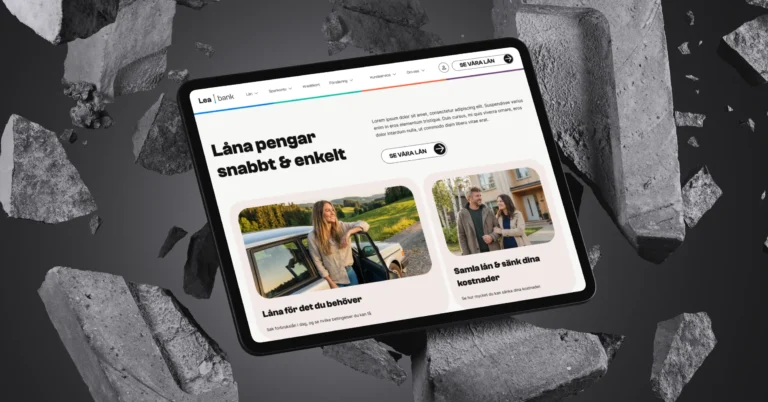 Client Case: Lea BankLea Bank rebuilt its digital platform with Strapi, React, GrowthBook, GA4, and BigQuery to improve SEO, A/B testing, and marketing autonomy.Read the case
Devies
Want a second opinion?
Devies, a Gothenburg-based product and engineering consultancy, works on questions like this with Nordic product and IT teams. Tell us where you are and we will suggest a sensible first step.
Frequently asked questions
What is the difference between web accessibility and usability?
Web accessibility is about whether people with disabilities can use a website at all, including with assistive technology. Usability is about how easily and efficiently people in general can use it. The two overlap a lot: clear structure, readable text and forgiving forms help everyone. But a site can be pleasant for most users and still be impossible to use with a keyboard or screen reader.
Is web accessibility required by law in Sweden?
Yes, for many organisations. Public bodies are covered by the DOS law, lag (2018:1937), supervised by DIGG. Since 28 June 2025, companies offering certain consumer services, such as e-commerce, consumer banking and e-books, are covered by lag (2023:254), with PTS supervising e-commerce and banking. Micro-enterprises are exempt for services. Other companies may still face accessibility requirements in contracts and public procurement.
Do accessibility overlays or plugins make a website accessible?
No tool can make a website accessible on its own. W3C states that no tool alone can determine whether a site meets accessibility standards, and the same applies to tools that try to fix one. Barriers such as missing labels, poor structure or keyboard traps sit in the code and content, and they must be fixed there. Overlays can also interfere with assistive technology users already rely on.
Where should a small team start with web accessibility?
Start with the pages and journeys that matter most to your business, such as the start page, contact form or checkout. Run the 30-minute check in this guide, fix what you find, and make the fixes part of your components so they carry over to every page. Then add an automated checker to your publishing or build process, and plan a manual review before your next major release.
Sources
- W3C WAI: Introduction to Web Accessibility
- W3C: Web Content Accessibility Guidelines (WCAG) 2.2
- W3C WAI: Easy Checks, A First Review of Web Accessibility
- W3C WAI: Evaluating Web Accessibility Overview
- Riksdagen: Lag (2023:254) om vissa produkters och tjänsters tillgänglighet
- PTS: Lagen om vissa produkters och tjänsters tillgänglighet