Which documents the Swedish and EU rules cover, what makes a PDF accessible, and how to fix documents at the source instead of patching every file.
In short
An accessible PDF is a tagged document whose structure, reading order, text alternatives and language can be read by assistive technology. Public-sector documents in Sweden must meet EN 301 549, which applies WCAG criteria to documents. Fix them in the source file, export with tags, check with Acrobat or PAC, and confirm with a screen reader.
PDFs are where many otherwise accessible websites fail. Annual reports, price lists, forms, minutes and product sheets are often produced outside the web team, exported without structure and uploaded in bulk. This guide is written by Devies, a Gothenburg-based product and engineering consultancy, for communications, document and digital leads who need to know when a tillgänglig pdf is required and how to make one without redoing every file by hand.
What makes a PDF accessible?
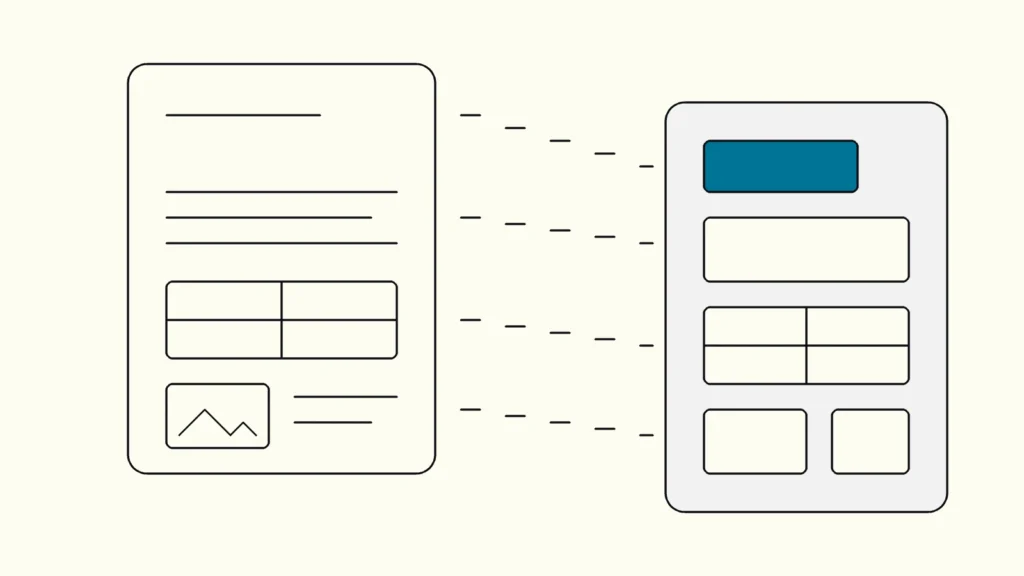
An accessible PDF is a tagged PDF in which every meaningful element has a defined role, a logical reading order and, where needed, a text alternative, so that screen readers and reflow tools can present it correctly.
Tags are the hidden structure of a PDF: they mark headings, paragraphs, lists, tables, figures and links, much like HTML elements. Without tags, a screen reader receives an unordered stream of text, or nothing at all if the page is a scanned image. PDF/UA (ISO 14289) is the technical standard for universally accessible documents in PDF format. PDF/UA-1 applies to most documents in use, and PDF/UA-2 was published in 2024 for PDF 2.0.
Property
Tagged and accessible
Untagged or broken
Structure
Tagged and accessible
Tagged headings, lists, tables
Untagged or broken
Untagged, or tags that do not match the content
Text
Tagged and accessible
Real, selectable text
Untagged or broken
Scanned image of text
Reading order
Tagged and accessible
Follows the logical order, including columns
Untagged or broken
Jumps between columns, headers and footers
Images
Tagged and accessible
Alt text on informative images, decorative ones marked as artefacts
Untagged or broken
No alt text, or decorations read aloud
Metadata
Tagged and accessible
Document title and language set
Untagged or broken
File name shown as title, no language
Forms
Tagged and accessible
Labelled, tab-ordered fields
Untagged or broken
Fields without names
What do the rules require for documents?
As of October 2026, Swedish public bodies must make documents on their websites accessible under the DOS law, and companies covered by the European Accessibility Act must make documents that are part of their service accessible.
The DOS law applies to the whole digital service, including downloadable files. DIGG's regulation points to EN 301 549 V3.2.1, whose clause 10 applies WCAG 2.1 criteria to non-web documents such as PDFs and office files. Section 2 of the ordinance that complements the law (SFS 2018:1938) exempts some content, including document file formats published before 23 September 2018 unless they are needed for active administrative processes. Documents published since then must be accessible, or listed as a deficiency in the accessibility statement.
For private companies, the European Accessibility Act covers consumer services such as e-commerce, banking and passenger transport. Terms, invoices, statements and booking confirmations that form part of such a service fall within its scope, and the same EN 301 549 requirements are the usual benchmark.
In practice the requirement is functional, not a file format: a document must be perceivable, operable, understandable and robust. An accessible HTML page often meets that more easily than a PDF.
How to make an accessible PDF in eight steps
The most reliable method is to build accessibility into the source document and export it with tags, then repair only what the export gets wrong.
- Ask whether it should be a PDF at all. Content people read on screen, such as news, guidance and contact information, works better as a web page. Keep PDF for documents that must be printed, signed or archived in a fixed layout.
- Use real styles in the source. In Word, PowerPoint or InDesign, use built-in heading styles, list styles and table headers rather than bold text and manual spacing. Structure in the source becomes tags in the PDF.
- Add alt text and mark decorations. Describe informative images and charts in the source file. Mark logos and decorative shapes as decorative.
- Set title and language. Fill in the document title in the file properties and set the document language, plus the language of any passages in another language.
- Check in the source application. Run the built-in checker. Microsoft's guidance on accessible PDFs recommends running the Accessibility Checker before saving as PDF.
- Export with tags. In Word, choose Save As PDF, open Options and make sure "Document structure tags for accessibility" is selected. Printing to PDF discards tags.
- Validate the PDF. Run Adobe Acrobat Pro's Accessibility Check and the free PAC checker, which tests the machine-checkable PDF/UA requirements. Fix reading order and table headers in Acrobat only when the source cannot be fixed.
- Test with a screen reader. Open the file with NVDA or VoiceOver and listen to headings, tables and images. Our guide to screen reader testing covers the basic commands.
What about scanned documents and large archives?
Scanned documents and large archives need a triage plan, because fixing every legacy file by hand is rarely realistic or necessary.
A scanned page is an image of text. Optical character recognition (OCR) creates selectable text, but the result still needs tags, a reading order and a check for recognition errors. Start with triage:
- Remove outdated documents that no one needs.
- Convert frequently used documents to web pages.
- Remediate documents needed for active processes, such as application forms and current decisions.
- Exempt and list older archive documents that fall under the legal exemption, and offer an accessible version on request.
For recurring documents, such as monthly reports or invoices generated by a system, fix the template or the generator once. A PDF library that writes tagged output removes the problem for every future file.
How do you keep new documents accessible?
New documents stay accessible when the people who create them have accessible templates, a short checklist and a check before publishing.
- Provide templates with heading styles, table styles, colour contrast and language already set.
- Train document authors for an hour on styles, alt text and export settings; this prevents most problems.
- Add a publishing gate so that the web editor checks the PDF with an automated checker before upload.
- Set procurement requirements for systems and agencies that produce documents for you, naming PDF/UA and EN 301 549.
Keep reading
From our work
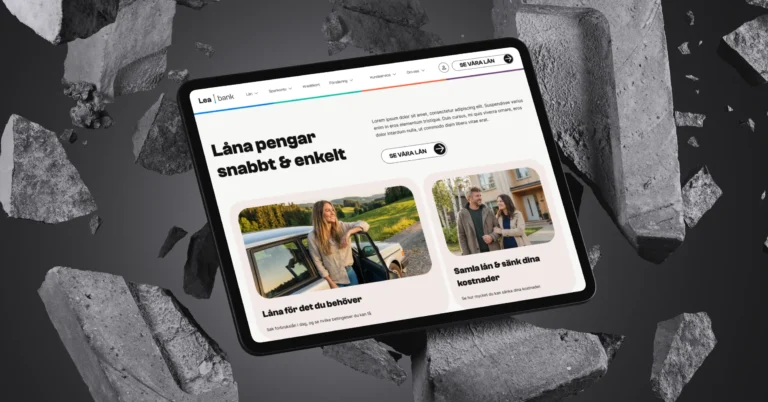 Client Case: Lea BankLea Bank rebuilt its digital platform with Strapi, React, GrowthBook, GA4, and BigQuery to improve SEO, A/B testing, and marketing autonomy.Read the case
Devies
Want a second opinion?
Devies, a Gothenburg-based product and engineering consultancy, works on questions like this with Nordic product and IT teams. Tell us where you are and we will suggest a sensible first step.
Frequently asked questions
Do PDFs on a website need to be accessible?
For Swedish public bodies, yes: documents on a covered website are part of the digital service under the DOS law, with an exemption in the ordinance for document files published before 23 September 2018 unless they are needed for active administrative processes. For companies under the European Accessibility Act, documents that form part of a covered service, such as terms or invoices, should be accessible too.
What is PDF/UA?
PDF/UA, short for PDF Universal Accessibility, is the ISO 14289 standard that defines how a PDF must be structured to be accessible to assistive technology. PDF/UA-1 is the version most documents and tools use today, and PDF/UA-2 was published in 2024 for PDF 2.0. Meeting PDF/UA covers the technical structure, while EN 301 549 and WCAG cover the content requirements.
Is the Acrobat accessibility checker enough?
No. Acrobat's Accessibility Check and the free PAC tool test what a machine can verify, such as tags, title, language and missing alt text. They cannot judge whether alt text is meaningful, headings are logical or the reading order makes sense. Adobe itself recommends manual review of the reading order. Always finish with a screen reader check of the most important documents.
Should we convert our PDFs to web pages?
Often, yes. Web pages adapt to screen size, zoom and assistive technology better than fixed-layout PDFs, and they are easier to keep accessible. Keep PDF for documents that must be printed, signed or archived in a fixed form, such as contracts and official decisions, and make those PDFs tagged and checked. Guidance, news and forms usually work better as HTML.